Behind The Scenes of Git Version Control
Git often feels like magic.
You run a few commands, things get saved, history appears, mistakes disappear, and somehow your code survives bad decisions. But Git isn’t magic. It’s just extremely well-organised.
Once you understand what Git is actually doing under the hood, a lot of confusion disappears. Commands stop feeling random, and Git starts behaving predictably.
Let’s open the box.
How Git Works Internally
At its core, Git is not a file tracker.
It’s a content tracker.
Git doesn’t think in terms of “files changing line by line.” Instead, it stores snapshots of content, identified by hashes. Every time you commit, Git saves a snapshot of how your project looked at that moment and links it to previous snapshots.
Think of Git as:
A database
Filled with objects
Connected by references
Stored locally on your machine
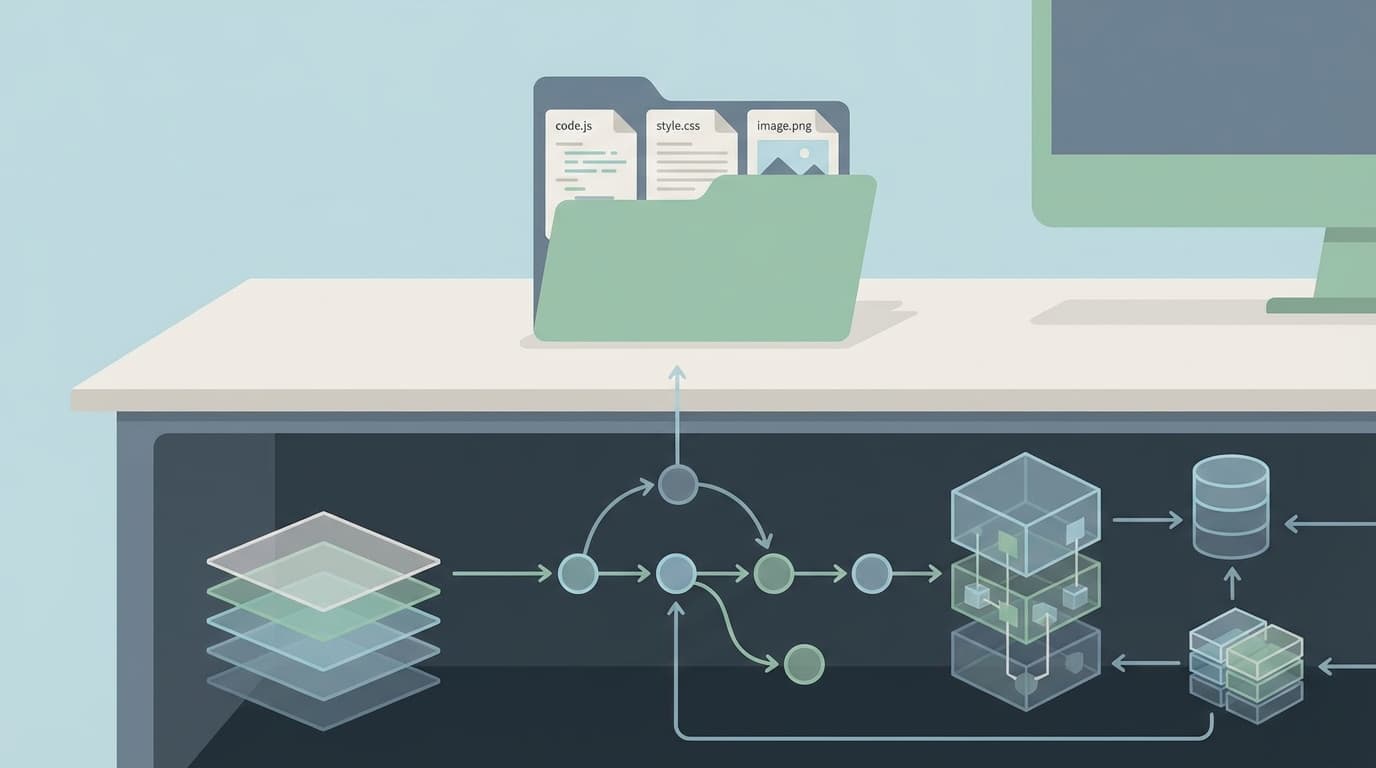
Everything Git needs lives inside one place.
That place is the .git folder.
Understanding the .git Folder
When you run “git init”, git creates a hidden folder called “.git”.
This folder is the entire brain of Git.
Your project files live outside it.
Your project’s memory lives inside it.
The “.git” folder contains:
The complete history of your project
All commits you’ve ever made
Information about branches
References like HEAD
Git’s internal database of objects
If you delete “.git”, your project becomes a normal folder again. No history. No version control.
That’s why Git exists as a separate system layered on top of your files, not mixed into them.
Git Objects: The Building Blocks
Git stores everything as objects. There are three core ones you actually need to understand.
No more. No less.
Blob: The content
A blob stores the content of a file.
Important detail:
Git does not store filenames in blobs. Only content.
If two files have identical content, Git stores them once and reuses the blob. Efficient and slightly smug about it.
Tree: The Structure
A tree represents a directory.
It maps:
Filenames → blobs
Folder names → other trees
In simple terms:
Blobs hold what the file contains
Trees hold where files live
Commit: The Snapshot
A commit ties everything together.
A commit contains:
A reference to a tree (project structure)
A reference to its parent commit
Author info
Timestamps
Commit message
A commit doesn’t store file changes.
It stores a pointer to a complete snapshot.
That’s why Git can move backwards and forward in history so easily.

What Actually Happens During “git add”
This is where most beginners get confused, so let’s slow down.
When you modify a file:
Git notices the change
But it doesn’t store it yet
When you run “git add”:
Git takes the file’s content
Converts it into a blob
Stores it inside the “.git” object database
Updates the staging area to point to that blob
Nothing is committed yet.
You’re just telling Git: “This version matters.”
The staging area is not a waiting room.
It’s a preview of the next snapshot.
What Actually Happens During “git commit”
When you run “git commit”:
Git takes everything in the staging area
Builds a tree representing your project structure
Creates a commit object
Links it to the previous commit
Moves HEAD to point to this new commit
That’s it.
No different files.
No line-by-line patchwork.
Just clean snapshots connected in a chain.
How Git Tracks Changes Without Losing Its Mind
Here’s the clever part.
Git uses cryptographic hashes (SHA-1 or SHA-256 in newer versions).
Every object:
Blob
Tree
Commit
Is identified by a hash derived from its content.
This means:
If the content changes, the hash changes
If the hash changes, Git knows something changed
If the hash doesn’t match, corruption is detected
This gives Git:
Data Integrity
Deduplication
Trust in history
You literally cannot alter a past commit without Git knowing.
Which is comforting. And mildly intimidating.

The Mental Model That Makes Git Click
Stop thinking of Git as a command-line tool.
Think of it as:
A local database
Of immutable objects
Connected by references
That you move around with commands
Commands don’t do magic.
They just move pointers and create objects.
Once you see Git this way:
“git add” makes sense
“git commit” makes sense
Branches make sense
Even rebasing starts to behave
Eventually.

Conclusion
You don’t need to memorise Git internals to use Git well.
But understanding what’s happening behind the scenes turns Git from something you fear into something you trust.
Git isn’t trying to confuse you.
It’s just very honest about remembering everything.
And sometimes, that honestly feels personal.