Git for Beginners: The Basics without the Headache
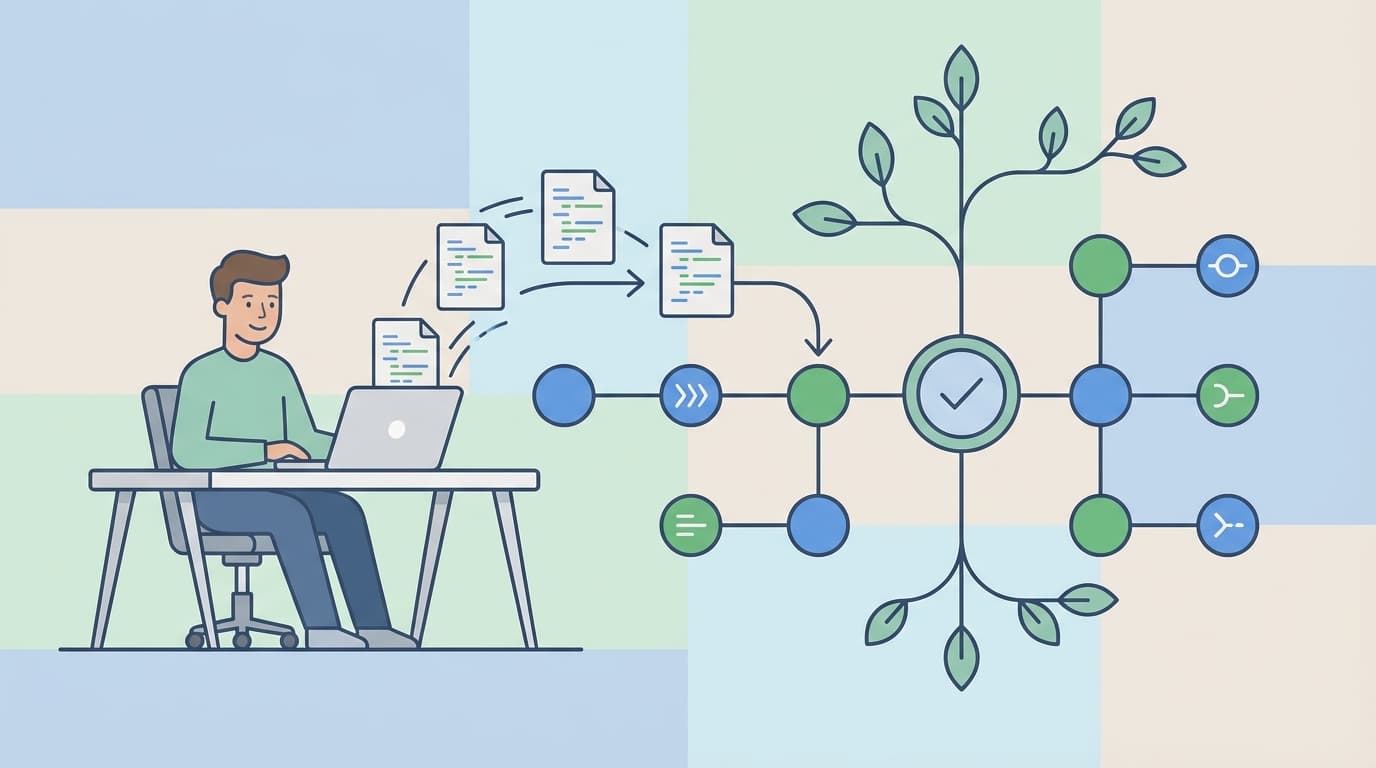
If you’ve had folders named “final”, “final_v2”, or “final_really_final”, congratulations. You already understand why Git exists. You just didn’t have a proper tool yet.
Git is one of those things every developer is expected to know, but rarely taught properly. This article focuses on understanding Git before memorising commands, so you can actually use it with confidence.
What is Git?
Git is a distributed version control system.
That sounds heavy, so let’s simplify it.
Git is a tool that:
Tracks changes in your code over time
Lets you save checkpoints of your work
Helps multiple people work on the same project without overwriting each other
Think of Git as a timeline for your code. Instead of copying entire folders, Git remembers what changed, when it changed, and who changed it.
The “distributed” part means every developer has a full copy of the project history on their own machine.
You don’t need the internet or a central server just to track changes locally.
Why is Git used?
Git exists to solve problems that appear the moment a project grows beyond one person or one day of work.
Here’s what Git helps with:
Tracking History
You can see exactly how your project evolved over time and revert to an older version if something breaks.Safe Experimentation
You can try new ideas without fear. If it fails, you can discard the changes without damaging the working code.Collaboration
Multiple developers can work on the same codebase at the same time without overwriting each other’s work.Accountability
Git shows who made which change and why. This is incredibly useful for debugging and teamwork.
In short, Git replaces guessing, copy-pasting, and panic with structure and confidence.
Git Basics and Core Terminologies
Before touching commands, it’s important to understand Git’s mental model.
Repository (Repo)
A repository is a project tracked by Git.
It contains your files and the complete history of changes.
You can think of it as a folder with memory.
Commit
A commit is a saved snapshot of your project at a specific point in time.
Each commit:
Has a unique ID
Contains the changes made since the last commit
Usually includes a short message describing what changed
Good commits are small, focused, and meaningful.
Branch
A Branch is an independent line of development.
Branches allow you to:
Work on new features safely
Fix bugs without touching the main code.
Experiment without breaking anything
The default branch is usually called “main” or “master”.
HEAD
HEAD is simply a pointer to where you currently are in the project history.
If you switch branches or move to an older commit, HEAD moves with you.
You rarely control HEAD directly, but understanding it helps Git make sense.

Common Git Commands
These are the core commands every beginner should know.
git init
Initialises a new Git repository in the current folder.
This tells Git: “Start tracking this project”.
git status
Shows the current state of your working directory.
It tells you:
Which files are modified
Which files are staged
What Git is waiting for you to do next
git add
Stages files for the next commit.
“git add filename” or “git add . ”
This does not save changes. It prepares them.
git commit
Creates a snapshot of the staged changes.
“git commit -m “Add user login feature” “
git log
Shows the commit history.
You’ll see:
Commit IDs
Authors
Dates
Messages
This is your project’s memory.

A Basic Git Workflow
Here’s how a typical solo developer workflow looks:
Create a project folder
Run “git init”
Write some code
Check changes with “git status”
Stage changes using “git add”
Save progress using “git commit”
Repeat as the project grows
That’s it. Everything else builds on this.

Conclusion
Git isn’t hard. It’s just often introduced badly.
You don’t need to memorise every command or understand Git internals on day one. Focus on:
Tracking changes
Writing good commits
Practicing regularly
Once the basic click, Git stops feeling scary and starts feeling like a safety net.
And that’s exactly what it’s meant to be.